












Meta could be analyzing and retaining your phone’s photos without your explicit consent.
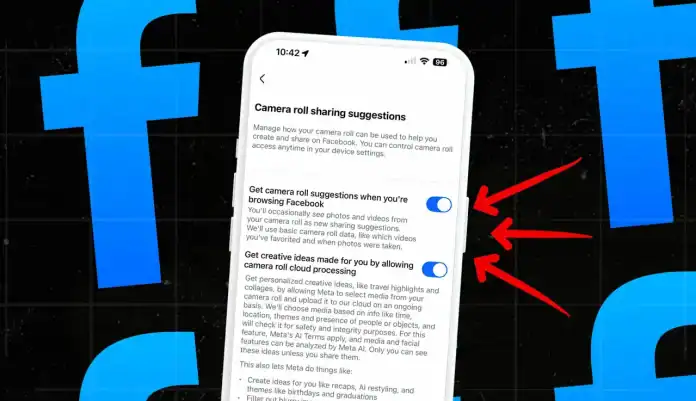
Some Facebook users have noticed that, within their app settings, Meta automatically switched on two toggles that allow it to access their device’s camera roll to offer AI-powered suggestions, including “personalized creative ideas, like travel highlights and collages.”
The problem? These “camera roll sharing suggestions” features appear to be turned on by default — even for users who say they never saw a “cloud processing” pop-up from Facebook that asks for permission to enable them. If you did see the pop-up and tapped “Allow” on it, you agreed to Meta’s AI Terms of Service and permitted your “media and facial features” to be analyzed by AI.
Facebook then uses your camera roll images — including the dates on them and the presence of people or objects — to suggest collages, themed albums, recap posts, or AI restyled versions of your pictures. The suggestions are only visible to you, unless you choose to share them, and Meta says the media won’t be used for ad targeting.
How to stop Facebook from scanning your camera roll
If you want to check whether the features are turned on for you — and possibly turn them off — here’s how.
1. Open the Facebook app
The settings you’ll want to check can be found in the Facebook mobile app.
- Grab your iPhone or Android phone.
- Open the Facebook app. You’ll need to be signed into your account.

2. Go to the Menu > Settings and Privacy
Facebook hides most of its settings in the menu — the three-line hamburger icon in the bottom corner of the app.
- Tap the Menu icon in the bottom right corner of the screen.
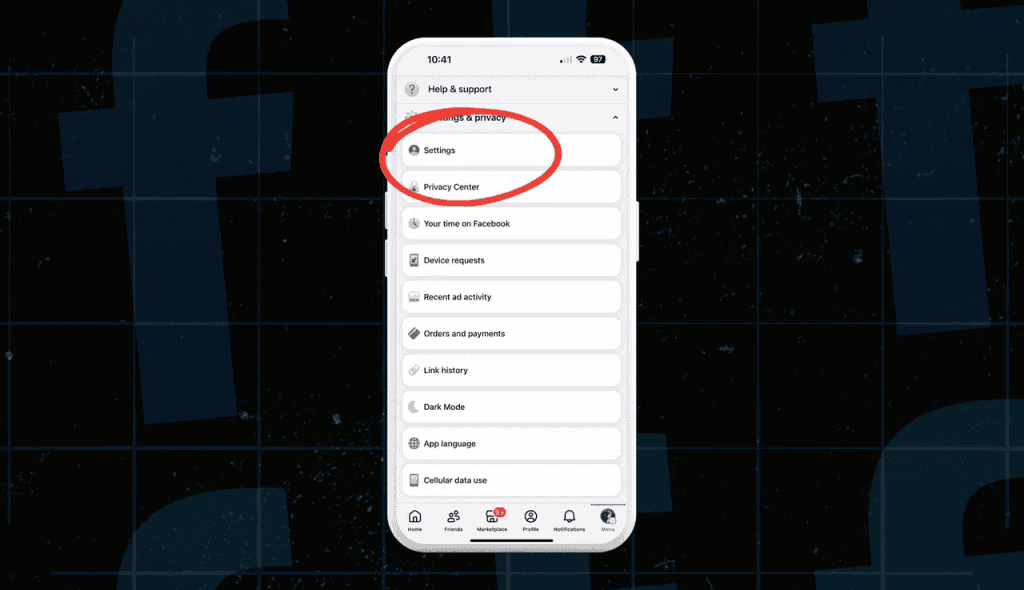
- Once the menu opens, look for Settings and Privacy with a gear icon. This will take you directly to Settings.

3. Select Settings
Once you find and tap Privacy and Settings to expand the dropdown options, tap Settings again.
- Under Settings and Privacy, tap Settings.
- Now, scroll down and look for “Camera roll sharing suggestions.”
4. Go to Camera roll sharing suggestions
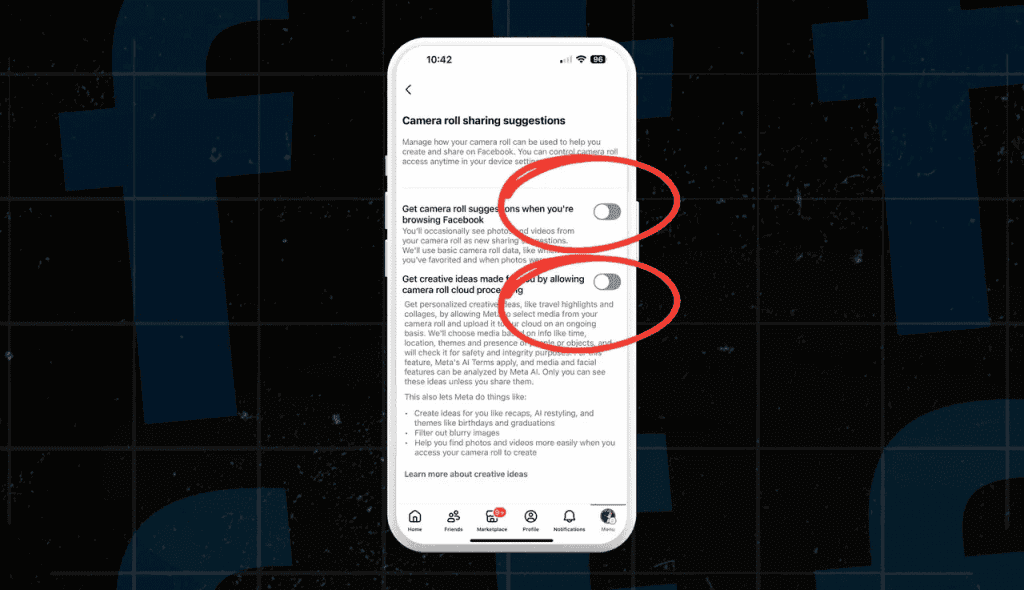
Meta placed the toggles that grant it access to your camera roll under the “Camera roll sharing suggestions” setting. You’ll need to go there to see if they’re on and, if so, switch them off.
- Look for the option labeled “Camera roll sharing suggestions” and tap it.
- This will open a preference page with a couple of toggles.
5. Turn off both toggles
Once you’re inside the camera roll sharing suggestions page, notice the two separate switches. If they’re blue and the toggle circle is pushed to the right, they’re on — meaning Meta is already processing and retaining your phone’s photos. Turn them off so the app can’t automatically upload and analyze your camera roll.
- Find the option labeled “Get camera roll suggestions when you’re browsing Facebook.” If the switch is on (blue), tap it once to turn it off (gray). This will stop Facebook from using basic camera roll data, such as which videos you’ve favorited and when photos were taken, to suggest sharing media you haven’t yet uploaded.
- Find the option labeled “Get creative ideas made for you by allowing camera roll cloud processing.” If the switch is on (blue), tap it once to turn it off (gray). This will stop Facebook from continuously uploading media from your camera roll — and using details like time, location, themes, and the presence of people or objects — to generate personalized creative ideas such as recaps and AI restylings.